

 sales@agilitz.com

Use the right agent for the task
This is the Finance Agent experience in Excel. It is separate from the Account reconciliation agent embedded in Dynamics 365 Finance. The Excel workflow compares structured datasets; it does not mean the Dynamics 365 workspace has posted a correction.
Prepare the data and matching keys
Bring the two datasets into properly formatted Excel tables with clear headers. Preserve identifiers as text where needed: Excel can lose precision on long numeric identifiers, which can produce misleading matches.
Open the Finance Agent add-in, choose the tables and review the suggested mapping and monetary keys. Reference columns can provide investigation context without becoming matching criteria.
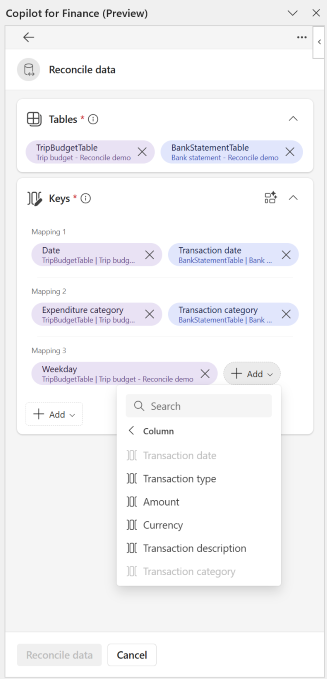
- Check that the mapping key identifies the intended business relationship.
- Confirm amount signs, currency and precision.
- Set tolerances deliberately and document their purpose.
- Review the effect of one-to-many and grouped transactions before accepting the output.
Review the report and summary
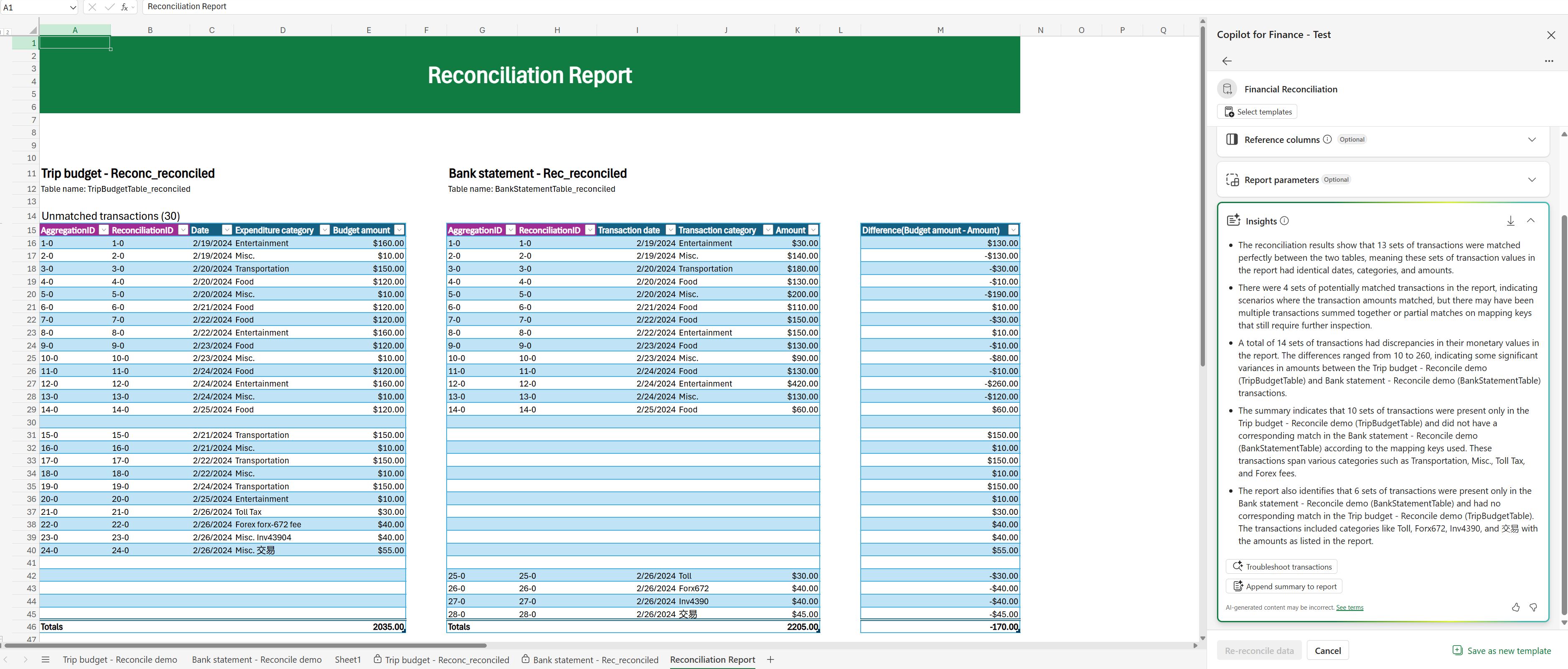
Run the reconciliation and investigate the matched, potentially matched and unmatched groups. Use detailed results and source links to understand which entries were grouped and why a difference remains.
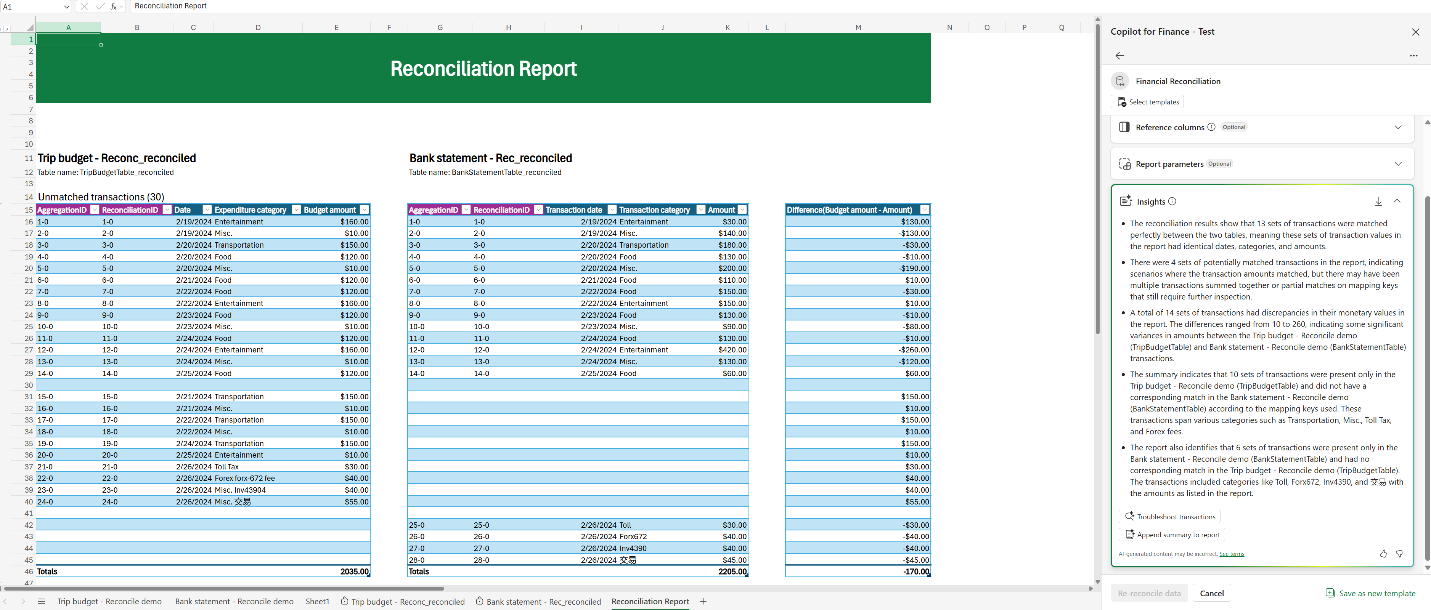
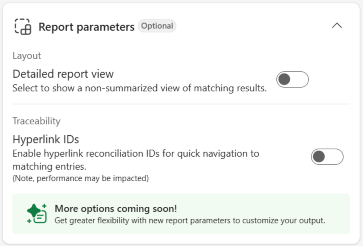
A generated summary can help direct attention, but it is not a replacement for examining the source transactions. Check significant discrepancies, unusual groupings and the effect of any tolerance before relying on the conclusion.
Reuse a reviewed configuration
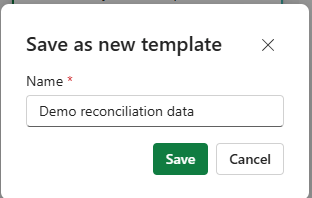
Save a template only after the table selection, keys and tolerances have been checked. A template can support repeated reconciliations, while scheduled or autonomous use needs the appropriate agent, data source, permissions and trigger setup.
For a recurring process, assign an owner for source-file completeness, failed runs and unresolved differences. Make sure the team can distinguish a generated report from an approved reconciliation and a completed accounting correction.
Further reading
For current feature availability, prerequisites and detailed configuration, refer to Microsoft Learn.
Screenshots and scenarios are illustrative. Interface labels and available features can vary by application version and environment.